What's inside
As an Amazon Associate I earn from qualifying purchases. This post may contain affiliate links at no extra cost to you.
The best routers with parental controls for most families in 2026 are the TP-Link Deco X55 for affordable whole-home coverage, the ASUS RT-AX86U Pro for advanced filter customization without a subscription, and the Firewalla Purple paired with a mesh system for the most granular parental controls, with the right choice depending on your home size, ages of your kids, and whether you want to avoid ongoing fees.
As an Amazon Associate we earn from qualifying purchases at no extra cost to you.


Contents
Best Routers With Parental Controls at a Glance
This comparison focuses on what matters for families: how easy the parental controls are to use day-to-day, how strong the filtering is, how many devices you can manage, real-world coverage, and whether you have to pay monthly to keep the controls working.
| Router / System | Type & WiFi Standard | Coverage (Per Unit / 2-Pack) | Parental Control App | Content Filtering & Features | Device Profiles / Pause | Subscription Required for Parental Controls? |
|---|---|---|---|---|---|---|
| TP-Link Deco X55 (AX3000) | Mesh, Wi-Fi 6 Dual-Band | Up to 2,500 sq ft / 5,000 sq ft | TP-Link Deco App + HomeShield | Age-based filters, safe search, YouTube Restricted, time limits, bedtime | Unlimited profiles, 100+ devices supported, instant pause per device/profile | Basic free; HomeShield Pro $5.99/mo or $54.99/yr for advanced filters and reports |
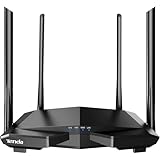
| ASUS RT-AX86U Pro | Standalone, Wi-Fi 6 Dual-Band | Up to 2,500 sq ft (single router) | ASUS Router App + AiProtection | Web & Apps filter, DNS filtering, scheduler, safe browsing, no ads/time-based blocking | Up to 64 profiles, no hard device limit (250+ clients), instant pause and offline scheduling | No – Lifetime free via Trend Micro AiProtection |
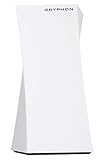
| Gryphon Tower / Gryphon AX | Mesh, Wi-Fi 6 Tri-Band (AX) | Up to 3,000 sq ft / 6,000 sq ft | Gryphon Connect App | Age-based content filters, malware blocking, crowd-sourced category blocking, homework mode | Unlimited profiles, 100+ devices, pause internet per device/profile | Yes – $9.99/mo or $99/yr after first year included |
| Firewalla Purple + Any Router/Mesh | Firewall Appliance + Your Existing WiFi | Depends on paired WiFi system | Firewalla App | DNS-based family filters, app blocking, activity alarms, forced safe search, social media & gaming limits | Unlimited groups/devices, per-device rules, one-tap pause and data quota | No subscription – one-time hardware cost |
| eero Pro 6E | Mesh, Wi-Fi 6E Tri-Band | Up to 2,000 sq ft / 4,000 sq ft | eero App | Family profiles, content filters by age, scheduled pauses, block/allow sites | Unlimited profiles, 100+ devices, pause per profile | Advanced filtering requires eero Plus $9.99/mo or $99.99/yr |
| Netgear Orbi RBK753 (AX4200) | Mesh, Wi-Fi 6 Tri-Band | Up to 2,500 sq ft / 5,000 sq ft | Orbi App + Smart Parental Controls | Category filters, bedtime, time limits, browsing history, pause internet | Unlimited profiles, 40+ devices recommended, pause per profile | Managed by Netgear Smart Parental Controls $7.99/mo or Bitdefender-based free tier limited |
How Parental Controls Actually Differ
All of these routers let you pause the internet, but the filter quality and daily usability are very different.
1. App Controls and Ease of Use
For families who want simple on/off control from a phone, mesh apps from TP-Link Deco, eero, and Gryphon are the easiest. You create a profile for each child, assign their devices (phone, tablet, console, laptop) to that profile, and then set a single bedtime and pause button for everything at once. Changes apply in seconds without logging into a browser dashboard.
ASUS and Firewalla are more powerful but require more setup. ASUS lets you block specific app categories like instant messaging or streaming, set bandwidth limits per device, and see exactly which device is using the most data. Firewalla goes further with custom rules like “block TikTok and Snapchat between 3pm-7pm on weekdays only” or “limit gaming to 90 minutes per day per child,” with push notifications when a rule is triggered. If you want set-and-forget simplicity, choose Deco or eero. If you want precision, choose ASUS or Firewalla.
2. Content Filtering Depth
- Basic DNS filtering (TP-Link free, eero, Netgear free tier): Blocks adult, gambling, and violent categories. Good for younger kids but can be bypassed if a child changes DNS on their device unless you lock DNS at the router.
- Intermediate category filtering (ASUS AiProtection, Gryphon): Offers 15-20+ categories including social media, gaming, and YouTube restriction, plus safe search enforcement for Google and Bing. ASUS and Gryphon also block known malicious sites automatically.
- Deep app and behavior filtering (Firewalla): Filters by domain, app, and activity alarms. You can block specific services like Discord or Roblox, enforce safe search, and see a live feed of blocked attempts. It also prevents DNS bypass by intercepting all DNS requests on the network.
For elementary-aged children, basic filters are enough. For tweens and teens with their own phones, you need a system that blocks by app and locks DNS — that points to ASUS, Gryphon, or Firewalla.
3. Time Limits, Bedtimes, and Homework Modes
Most systems now offer three features: scheduled bedtime (internet off from 9pm to 7am), daily time quotas (e.g., 2 hours of internet per day), and an instant pause. Gryphon and Firewalla add a “homework mode” that allows school sites like Google Classroom and Khan Academy while blocking YouTube and games. eero and TP-Link require a subscription to unlock time quotas and browsing insights; ASUS and Firewalla include them for free.
Coverage and Device Limits: What Families Get Wrong
Parental controls are useless if the WiFi doesn’t reach the kid’s bedroom or if the router slows down when 30 devices connect.
A single standalone router like the ASUS RT-AX86U Pro realistically covers a 1,500 to 2,500 sq ft home with wood-frame walls. For larger homes, homes with brick or plaster walls, or two-story layouts, a 2-pack mesh system is more reliable than one powerful router. Mesh packs listed above at 5,000 to 6,000 sq ft for a 2-pack assume open space; subtract about 15-20% for interior walls and floors.
Worked Example: Choosing Coverage and Calculating Cost
Take a typical family of four in a 2,400 sq ft two-story house with about 35 connected devices (phones, tablets, TVs, consoles, smart speakers).
Option A – Single router: One ASUS RT-AX86U Pro covers the house if centrally placed on the main floor. No subscription. Estimated hardware cost in the general market range of $180 to $250. Coverage is borderline upstairs. If you need an extender later, parental rules may not apply consistently to the extender.
Option B – Mesh 2-pack: TP-Link Deco X55 2-pack ($170 to $220) covers the full house with one node per floor. HomeShield Pro adds about $55/year after the first year. Over 3 years, total cost = $195 + ($55 x 2) = $305. Monthly cost averaged = $8.47. You get consistent filtering on both nodes and a single app to manage all devices.
Option C – Firewalla Purple ($320 to $350) + Deco X55 2-pack: Total year-one about $515 to $570, but no ongoing subscription. Over 3 years, it is often cheaper than subscription mesh systems while providing stronger controls. This is the best long-term value if you keep your router for 3+ years.
The mistake is buying based on advertised speed (AX3000 vs AX6000) rather than coverage and control consistency. For families, stable coverage and a unified control app matter more than peak speed.
Decision Matrix: Which Router Fits Your Situation
| Your Situation | Best Fit | Why |
|---|---|---|
| Small apartment or townhome under 1,800 sq ft, kids under 10, want free controls | ASUS RT-AX86U Pro or TP-Link Archer AX73 with HomeShield | Single router is enough, lifetime free filters, no subscription needed |
| Medium to large home 2,000-5,000 sq ft, need easy app for non-technical parent | TP-Link Deco X55/X68 or eero Pro 6E | Mesh ensures coverage, simple profile-based pause and bedtime, app is intuitive |
| Tweens/teens who try to bypass filters, need app blocking and DNS lock | Firewalla Purple + mesh or Gryphon AX | Prevents DNS bypass, blocks specific apps, alerts on attempts |
| Large home with gaming consoles and 40+ devices, want no buffer | Netgear Orbi RBK753 or ASUS ZenWiFi XT9 | Tri-band mesh dedicates a band to backhaul, handles many devices without slowdown |
| Budget-conscious and want to avoid any subscription forever | ASUS (any AiProtection model) or Firewalla | No monthly fee; all parental features included for life of device |
| Parents who work from home and need separate work/kids networks | Firewalla or ASUS with VLAN/Guest Network Pro | Create a fully isolated kids network with different filters and a separate work SSID |
Subscription Costs and Ownership Realities
This is where families are surprised. Many routers advertise parental controls on the box, but the useful controls sit behind a paywall after 30-90 days.
- No subscription: ASUS AiProtection and Firewalla include everything free for the life of the hardware. Updates are automatic and do not expire.
- Freemium: TP-Link HomeShield, Netgear Smart Parental Controls, and eero give you basic pause and bedtime for free, but age filters, time quotas, browsing history, and weekly reports require $6 to $10 per month.
- Required subscription: Gryphon includes one year, then requires renewal to keep filtering.
Durability wise, the router hardware itself lasts 4-6 years before WiFi standards move on. What “wears out” first is support: security updates and filter databases. ASUS and Firewalla have the strongest track record for long-term firmware updates (5+ years). eero and TP-Link also update frequently but tie new parental features to the paid tier. Before buying, check that the model still receives firmware updates in 2026 — older Wi-Fi 5 models often no longer do.
Common mistakes to avoid: using the ISP-provided router with no controls and adding a second router behind it without putting the ISP box in bridge mode (this creates double NAT and breaks device blocking), letting kids use their own mobile data to bypass WiFi limits (pair router controls with phone-level screen time settings), and not locking safe search and YouTube Restricted Mode at the router level.
Setup Tips to Make Controls Stick
After installing the router, do these steps in order: 1) Create a profile for each child and assign every device they use to that profile so you can pause by person, not by device. 2) Enable forced safe search and YouTube Restricted in the parental controls. 3) Lock DNS so devices cannot bypass filtering — on ASUS this is “DNS Filter,” on Firewalla it is “Force DNS over VPN/DNS Booster.” 4) Set a bedtime schedule and a daily quota rather than manual pauses, so limits are automatic. 5) Test from a child’s device in a private browser window to confirm adult sites are blocked before telling kids the rules are active.
Frequently Asked Questions
Do I need to pay for parental controls to be effective?
No. ASUS and Firewalla prove that strong filtering, scheduling, and safe search can be free for life. Paid tiers mainly add detailed reports, more filter categories, and longer history. If you just need to block adult content, enforce bedtime, and pause devices, the free tier on TP-Link or eero is enough, but you will need a paid tier or Firewalla/ASUS for app-specific blocking.
Can kids bypass router parental controls with a VPN?
Most free VPN apps can bypass basic DNS filters. Systems with deep packet inspection like Firewalla and ASUS can detect and block common VPN protocols and anonymizers. The most effective approach is to block the VPN app category at the router and also prevent app installs on the child’s phone through Apple Screen Time or Google Family Link.
Is a mesh system better than a single router for parental controls?
For homes over 2,000 sq ft or with two floors, yes. Mesh keeps all parental rules synced across every node automatically. With a single router plus a cheap extender, devices that connect to the extender often escape filtering or appear as unknown devices, which makes time limits unreliable.
Which router is best if I have both young kids and teenagers?
Choose a system that allows different filter levels per profile. Assign a strict filter (block social media, games, adult content) to young kids and a moderate filter (block adult content only, with a later bedtime) to teens. ASUS, Gryphon, and Firewalla handle per-profile levels best. Deco and eero also do this but require the Pro/Plus subscription for per-profile customization.